
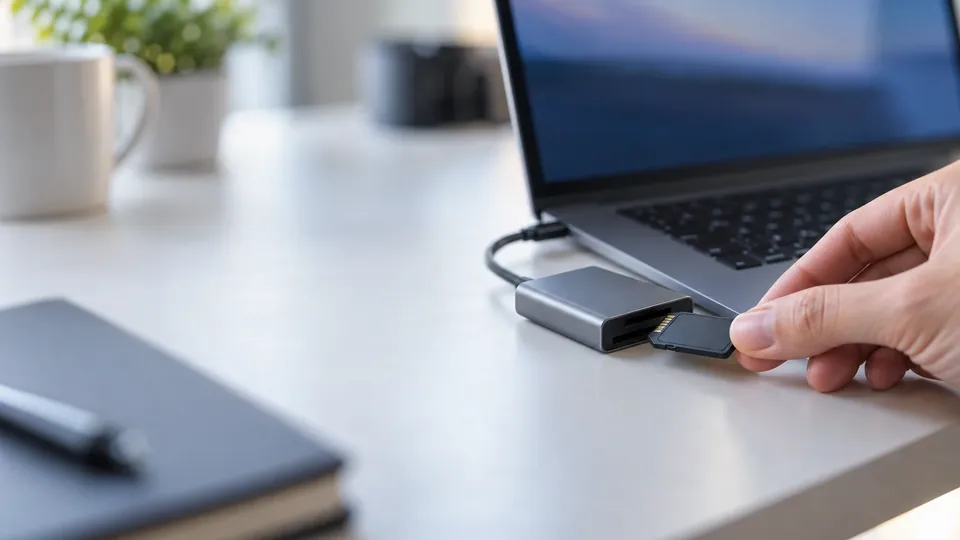
Tools that keep cards healthy
Top 5 SD Card Formatter Tools for Data Management (2026)
Formatting an SD card with the right tool keeps it fast, compatible, and healthy; the wrong approach can cause corruption or data loss. Here are the top 5 SD card formatter tools for 2026 — including the one the SD Association itself recommends — and how to use them without losing files.
4.9 / 5915 Google reviews · Cleanroom lab (opens Google in a new tab)6 min read · Updated 2026-08-02
Formatting sounds trivial, but the tool you use genuinely matters. The right formatter lays down a clean, correctly-aligned file system that keeps your card fast and compatible with your camera or phone; the wrong one — or a rushed job in the wrong utility — can leave a card slow, unreliable, or wipe files you meant to keep. Here are the top 5 SD card formatter tools for 2026 for good data management, and how to use them without losing data.
From the engineers at CBL Data Recovery Singapore, who recover formatted and corrupted SD cards every week.
Guide
Before anything: back up the card
Every formatter erases the card's file system. Whatever tool you choose, copy off any files you want to keep first — only format a card that's empty or already backed up. With that rule in place, here are the tools worth using.
Guide
1. SD Memory Card Formatter (the official tool)
The SD Memory Card Formatter from the SD Association is the one most people should use. It's free, available for Windows and Mac, and is specifically designed for SD, SDHC, SDXC, and microSD cards. Because it follows the SD standard exactly, it produces the correct file system and alignment for the card's capacity — which the generic OS formatters don't always get perfectly right.
Use it for routine formatting of camera, drone, and dashcam cards; it's the safest choice for keeping a card performing as intended. Its "Overwrite Format" option also does a fuller wipe when you want to securely clear a card (note: that makes recovery much harder, so only use it deliberately).
Guide
2. Windows built-in (File Explorer / Disk Management)
Windows' own tools are perfectly adequate for everyday formatting. File Explorer (right-click the card → Format) is the quickest; Disk Management gives more control and can fix a broken partition layout. Choose exFAT for cards 64GB and up, or FAT32 for older devices that need it. For most users these are convenient and reliable — just double-check you've selected the card and not another drive.
Guide
3. macOS Disk Utility
On a Mac, Disk Utility is the built-in equivalent. Use View → Show All Devices, select the card carefully by capacity, click Erase, and choose exFAT (with Master Boot Record scheme) for broad device compatibility. Reserve APFS or Mac OS Extended for cards that will only ever be used on a Mac.
Guide
4. diskpart (Windows command line)
When a card won't format normally, is stuck read-only, or has a corrupted partition table, diskpart is the recovery hatch. In an Administrator Command Prompt: list disk, select disk X (identify by size — critical), clean, create partition primary, format fs=exfat quick, assign. It's powerful and unforgiving, so confirm the disk number before clean — getting it wrong wipes the wrong drive. It's also the way to force FAT32 on cards larger than 32GB.
Guide
5. Third-party utilities (AOMEI, Rufus, GUIFormat)
For edge cases — forcing FAT32 on a large card, batch formatting, or reviving a stubborn card — third-party tools like AOMEI Partition Assistant, Rufus, or GUIFormat fill the gaps left by the built-in utilities. They're handy, but they're also the tools most likely to be misused, so stick to reputable ones and understand exactly what each option does before you run it.
Formatting a card that still had files? Stop and recover
A quick format only removes the index — the files stay on the card until overwritten. So if you formatted a card that still held important photos, the data is usually recoverable if you stop using the card immediately. Don't run a full/overwrite format on it, don't add new files, and run recovery software or use a lab. See our SD card recovery service.
Guide
Formatting habits for healthy cards
Good data management is more than picking a tool:
- Format in the device you'll use the card in where possible (e.g. your camera), so the file system matches the device's expectations.
- Format occasionally, not obsessively — modern cards don't need constant reformatting, and each format is a chance to select the wrong drive.
- Match the file system to the device — exFAT for most, FAT32 only when required.
- Replace cards that show errors. A card that repeatedly corrupts is wearing out; back it up and retire it.
Guide
When to call a lab
Call a lab when a card won't format in any tool, when it's physically cracked or water-damaged, when it reads as RAW and DIY software finds nothing, or when a format wiped irreplaceable files. Labs recover data at the chip level from cards software can't reach — and stopping early keeps your odds high.
Formatted or unreadable SD card?
CBL's cleanroom lab recovers photos and files from formatted, corrupted, and damaged SD cards — free diagnosis, fixed quote before any work.
WhatsApp: +65 8127 7508
Call: +65 6588 0261
Guide
The bottom line
For most people, the official SD Memory Card Formatter is the best default — it formats cards exactly to the SD standard and keeps them fast and compatible. The built-in Windows and macOS tools are fine for everyday use, diskpart is your fix for stubborn cards, and third-party utilities cover the edge cases. Whatever you use, back up first, pick exFAT for most devices, and confirm the right card before you format — and if a format goes wrong, stop using the card and recover it before new data overwrites the old.
Guide
Frequently Asked Questions
For most users, the SD Memory Card Formatter from the SD Association — it's free, follows the SD standard exactly, and keeps cards fast and compatible. The built-in Windows (File Explorer/Disk Management) and macOS (Disk Utility) tools are also perfectly good for everyday formatting.
Where possible, format in the device you'll use it in — a camera formats the card to match its own expectations, which reduces errors. For general storage or cross-platform use, format on a computer as exFAT. Either way, back up the card first.
exFAT for cards 64GB and larger and for most cameras, phones, and drones. FAT32 only for older devices that require it (with its 4GB file limit). NTFS or APFS/Mac OS Extended only for cards that stay on a single operating system, since other devices often can't read them.
Usually, yes, if you stop using the card immediately. A quick format leaves the files on the card until overwritten, and SD cards don't run TRIM, so recovery software can often rebuild them — recover to a separate drive. A full or "overwrite" format makes recovery much harder, so avoid those if you might need the data.
It may be physically failing, worn out, or corrupted at a level the tools can't fix. Don't keep retrying, which can worsen a failing card. If it holds important data, stop and get it diagnosed; if it's empty and just dying, replace it. Contact us if a card that won't format still has files you need.
What our clients say
Trusted by individuals and businesses in Singapore


Business Profile
Data Recovery – Rated by customers on Google
915Google reviews
4.9 out of 5
Updated 5 Nov 2026
“Thank you to the team at CBL for helping me recover all the contents from my faulty USB, which contained many precious family photos.”
Iris ShenUSB flash drive recovery · via Google “Great relief the engineers managed to recover all my data successfully from my damaged iPhone 14.”
Peter AndroidiPhone 14 recovery · via Google “Amazing service from CBL. They have restored all the data from my laptop. Sarah was very helpful and attentive to my queries.”
S YTLaptop recovery · via Google