

Honest software guide · 2026
Data Recovery Software: What It Can (and Can't) Get Back
The right tool can bring back deleted or formatted files from a healthy drive in minutes — often for free. On a physically failing drive, the same tool can make the loss permanent. Here's the honest guide: the best software, how to use it safely, and exactly when to stop.
4.9 / 5915 reviews (opens Google in a new tab)Quick answer
Data recovery software works when the drive is physically healthy and the loss is logical — a deletion, an emptied recycle bin, a quick format, or a missing partition. It's often the fastest, cheapest fix. But it cannot repair hardware: if the drive clicks, isn't detected, was dropped or is a RAID/encrypted volume, scanning it can overwrite or finish off the very data you want. When in doubt, a free diagnosis tells you which situation you're in before you risk it.
The basics
What data recovery software actually does

When you delete a file or format a drive, the data usually isn't erased straight away — only the "index" that points to it is removed, and the space is marked reusable. Recovery software scans the drive, rebuilds that index or "carves" files back out by their signatures, and copies them somewhere safe.
That means software is brilliant at logical problems on a working drive:
- Deleted files and emptied Recycle Bin / Trash
- Quick-formatted or reformatted drives
- A partition that "disappeared" or reads as RAW
- A corrupted file system that won't mount
The one thing software can't do
It can only read a drive the computer can still talk to. It cannot fix a physical fault — failed heads, a seized motor, burnt electronics, or dead NAND. On a failing drive, every scan is extra running time that can push it from "recoverable" to "gone".
Side by side
Best data recovery software (2026)
All of these can work for simple, logical loss on a healthy drive. None can overcome physical damage. Try the free scan first — never pay for a licence until you've confirmed the tool can actually see your files.
| Software | Platform | Free tier | Best for | Watch-outs |
|---|---|---|---|---|
| Recuva | Windows | ✓ Yes | Quick, simple deleted-file recovery for beginners | Basic on deep/formatted cases; Windows only |
| PhotoRec / TestDisk | Win · Mac · Linux | ✓ Free & open-source | Powerful file-carving & partition repair, no cost | Text-based interface; loses original filenames |
| Disk Drill | Win · Mac | Preview free, paid to save | Friendly interface, wide format support | Recoverable-file preview is free; saving needs a licence |
| EaseUS Data Recovery | Win · Mac | Up to 2 GB free | Deep scans, formatted & lost-partition recovery | Full recovery is paid; deep scans are slow |
| Stellar Data Recovery | Win · Mac | Preview free | Photos, video & documents; wide device support | Paid tiers by data type; can be pricey |
Honest note
We're a recovery lab, not a software vendor — we have no affiliate deal with any tool above. For a straightforward deletion on a healthy drive, free software often does the job and you never need us. We'd rather tell you that than sell you a job you don't need.
Do it right
How to use recovery software safely — 5 golden rules
Do this
- Stop using the drive the moment you notice the loss — every write can overwrite your files.
- Recover to a different disk — never save recovered files back onto the same drive.
- Install the software on another drive (or run a portable version), not the affected one.
- Image first if you can — make a full copy of the drive and scan the copy.
- Work from the deepest scan only after a quick scan, and be patient.
Don't do this
- Don't keep re-running scans on a drive that's slow, hot or making noise.
- Don't reinstall the OS or "repair" the disk before recovering.
- Don't recover onto the source drive — the classic mistake that overwrites data.
- Don't defrag, chkdsk or format to "fix" it first.
- Don't power-cycle a drive that isn't detected, hoping it comes back.
Step by step
How to recover deleted files with software
On a healthy drive the process is much the same across every tool — and one rule runs through all of it: never write anything to the drive you're recovering from.
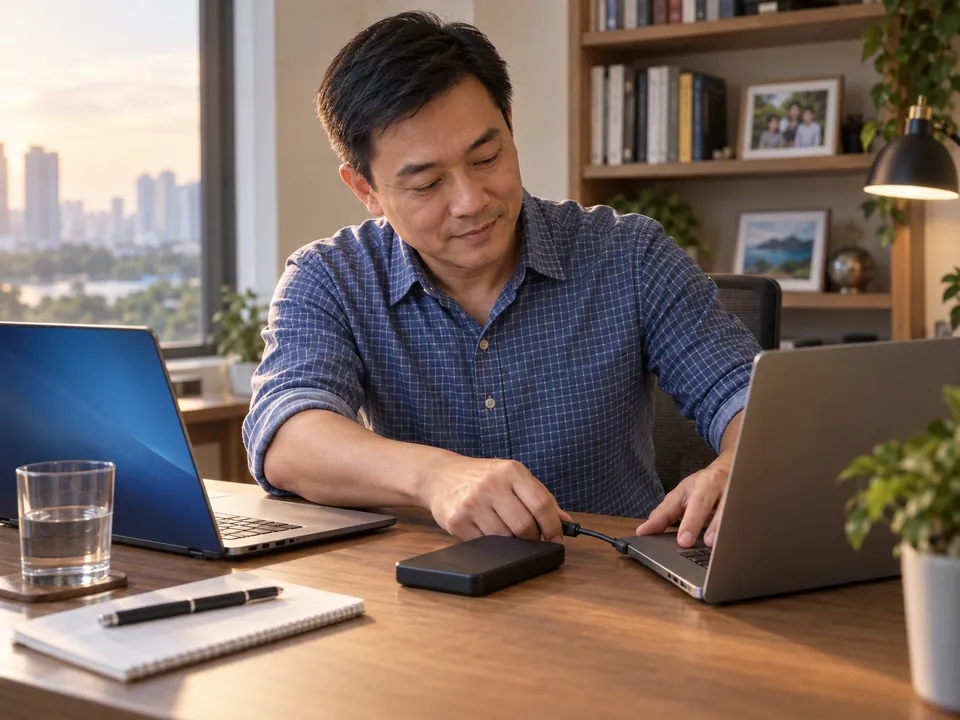
- Stop using the affected drive immediately. Don't save files, install programs or even browse on it — every write can overwrite what you're trying to get back.
- Install the software on a different drive. Put it on another disk or a second computer, or run a portable version from a USB stick — never install onto the drive you're recovering.
- Connect the affected drive as a secondary disk where you can — for example, plug it into another PC with a USB adapter so nothing is running from it.
- Run a quick scan first, then a deep scan. The quick scan finds recently deleted files fast; the deep scan carves out formatted or harder cases but takes much longer.
- Preview before you recover. If your documents and photos preview correctly, recovery is likely. Blank or corrupt previews usually mean the data is overwritten or the drive has a physical fault.
- Recover to a separate drive. Save the recovered files to a different disk than the one you scanned — recovering onto the source can overwrite the data that's left.
- Check the files open. Open a few documents, photos and videos to confirm they're intact before assuming the job is done.
Don't scan a failing drive
A repeated deep scan on a clicking, slow or overheating drive can finish it off. If the drive isn't healthy, stop and get it assessed — see how professional recovery works and why we image the drive first.
Safety
Is data recovery software safe?
The reputable tools are safe to run — the risk isn't the software itself, it's where and how you use it.
- On a healthy drive, it's safe as long as you install it elsewhere and recover to a different disk. Scanning only reads the drive; it doesn't alter your existing files.
- On a failing drive, it's risky. Every scan keeps a dying drive spinning and can turn a recoverable case into a permanent loss. If the drive clicks, isn't detected, or was dropped or wet, don't scan it.
- Download only from the official site. "Free data recovery" ads and cracked downloads are a common source of malware — stick to the vendors' own pages.
- You don't risk money to check. Almost every paid tool scans and previews for free; only pay once you've confirmed it can actually see your files.
Know the limit
When software won't work — and can make it worse

Software is the wrong tool the moment the problem is physical or the layout is complex. In these cases, running a scan risks the data — stop and get it assessed:
Clicking or beeping
Failed heads or motor. Scanning keeps a dying drive spinning — power off.
Not detected
If Windows/Mac can't see it, software can't either. It's a hardware job.
Dropped or water-damaged
Needs cleanroom work, not a scan. Don't power it on.
RAID / NAS / server
Software can't rebuild parity or striping — and can corrupt it.
BitLocker / encrypted
Without the key, a scan returns scrambled data. Needs proper handling.
SSD deleted files
TRIM usually wipes deleted data on SSDs within seconds — often unrecoverable by software.
The honest bottom line
If the drive is failing or the data is irreplaceable, a scan is a gamble with one life. A free diagnosis costs nothing, tells you if software is safe, and — if not — we image the drive and recover it properly. See physical vs logical recovery.
Money
Free vs paid recovery software
You rarely need to pay up front. Almost every paid tool lets you scan and preview for free — you only pay to save the results.
- Free tools (Recuva, PhotoRec/TestDisk, free tiers) handle most simple deletions and quick formats on healthy drives.
- Paid tools add deeper scans, more file types and support — useful for formatted drives and lost partitions, but they still can't overcome a physical fault.
- Golden rule: run the free scan first. If it previews your files, a licence may be worth it. If it finds nothing — or the drive is unhealthy — a licence won't help, and it's time for a lab.
Tip
Wondering what a professional recovery would cost instead? See our transparent data recovery price ranges — with you know the fixed price before committing.
Answers
Data recovery software — FAQ
On a healthy drive with a simple deletion, yes — tools like Recuva or PhotoRec are safe if you recover to a different drive. The risk isn't the software; it's running it on a physically failing drive, where scanning can finish the drive off.
There's no single best. For beginners on Windows, Recuva is simple; PhotoRec/TestDisk is the most powerful free option; Disk Drill and EaseUS are friendlier paid tools for formatted or lost-partition cases. All work only on healthy drives.
A quick format is usually recoverable; a full format or files that have been overwritten by new data usually are not. Once new data is written over the old, software can't bring it back — which is why you should stop using the drive immediately.
Often no, for deleted files. Modern SSDs use TRIM, which erases deleted data within seconds to keep the drive fast. For a failed or undetected SSD it's a hardware job — software can't read it. SSD recovery is specialised.
The reputable tools are safe to scan with, as long as you install them on another drive and recover to a different disk. Download only from the official site, and preview before paying.
If it clearly previews the files you need and the drive is healthy, a licence can be worth it. If the preview is empty or corrupted, don't pay — a licence won't change the result. That usually means physical damage or overwritten data, and a lab diagnosis is the next step.
Stop scanning and bring it in for a free diagnosis. An undetected drive, empty scan, or noises point to a physical fault that needs cleanroom or board-level work — and we often still recover data after a failed software attempt.
Zero risk
Software didn't work? Get a free diagnosis
What our clients say
Trusted by individuals and businesses in Singapore


Business Profile
Data Recovery – Rated by customers on Google
915Google reviews
4.9 out of 5
Updated 4 Nov 2026
“Thank you to the team at CBL for helping me recover all the contents from my faulty USB, which contained many precious family photos.”
Iris ShenUSB flash drive recovery · via Google “Great relief the engineers managed to recover all my data successfully from my damaged iPhone 14.”
Peter AndroidiPhone 14 recovery · via Google “Amazing service from CBL. They have restored all the data from my laptop. Sarah was very helpful and attentive to my queries.”
S YTLaptop recovery · via Google