
Recover data from your PC
How to Recover Data from a Desktop Computer (2026 Guide)
Your desktop won't turn on, won't boot, or your files have vanished — and important data is trapped inside. The good news: desktop data is often the easiest to recover, because the drive is usually a standard, removable unit. Here's how to recover data from a desktop computer in 2026, step by step.
4.9 / 5915 Google reviews · Cleanroom lab (opens Google in a new tab)7 min read · Updated 2026-08-01
A desktop that won't turn on, won't boot into Windows, or has suddenly lost your files feels like a disaster when your documents, photos and work are inside. But here's the encouraging reality: desktop data is often the easiest of all to recover, because a desktop's storage is usually a standard drive that can be removed and read on another computer. The problem is frequently the computer, not the data. This guide explains how to recover data from a desktop computer in 2026 — whether it's dead, won't boot, or the files are simply missing.
From the engineers at CBL Data Recovery Singapore, who recover desktop data every week.
Guide
First, work out what actually failed
Data loss on a desktop falls into a few distinct categories, and identifying yours points you to the right solution:
- The computer won't power on at all. Often a power supply, motherboard, or other component — not the drive. The data is usually perfectly safe.
- It powers on but won't boot into Windows (errors, blue screens, or endless spinning). Frequently a software or Windows problem, with the drive and data intact.
- The drive has failed. Clicking, not detected in the BIOS, or throwing read errors — this is the serious case, and the one to be careful with.
- Files are deleted, formatted, or corrupted on a working drive — a logical problem, often DIY-recoverable.
The crucial distinction is whether the drive is healthy. If the machine is dead but the drive is fine, recovery is straightforward. If the drive itself has failed, stop and treat it carefully.
Guide
The easiest method: remove the drive and read it
For a desktop that won't power on or won't boot, but whose drive is healthy, this is the simplest and safest recovery:
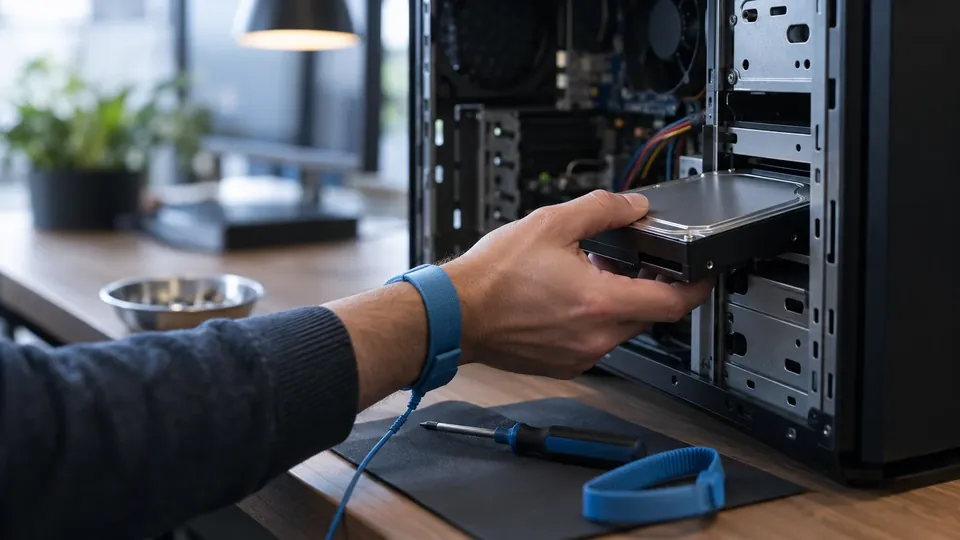
- Power down and open the case. Disconnect power, open the side panel, and locate the storage drive (a 3.5" or 2.5" SATA drive, or an M.2 NVMe stick on the motherboard).
- Remove the drive. Disconnect its cables (or unscrew the M.2) and take it out.
- Connect it to another computer. Use a SATA-to-USB adapter or external enclosure for a SATA drive, or an NVMe enclosure for an M.2, and plug it into a working computer.
- Copy your files off. If the drive is healthy, it'll appear as an external drive and you can simply copy your documents, photos and files to safety.
This bypasses the broken computer entirely and recovers your data in minutes — no software needed. It's why desktop recovery is often so easy: the data was never really lost, just trapped behind a broken machine.
That leaves the other half of the problem: the machine is still broken. Reviving it is repair work rather than recovery, and it is not something CBL does — iDevice Repair Centre, a separate company in the same building, repairs desktops, towers and all-in-ones.
Guide
If the files are deleted or the drive shows as corrupted
If the desktop works but files are deleted, formatted, or the drive shows as RAW, it's a logical problem:
- Stop using the drive to avoid overwriting recoverable data.
- Don't format a drive that shows as RAW if you want the data.
- Run recovery software — Recuva, Disk Drill, PhotoRec, or TestDisk — installed on a different drive, scanning the affected drive read-only, and recovering to a separate location.
- Verify the recovered files open correctly.
Guide
When the drive itself has failed
If the drive is clicking, not detected in the BIOS, or making unusual noises, that's physical failure — and the easy methods above don't apply. Removing and connecting a clicking drive won't help, and repeatedly powering it on causes more damage. This is where you should stop and treat it as a recovery case, not a DIY project. The data is usually still on the drive's platters or chips, but reaching it safely requires a lab.
Don't keep powering a failing drive
If the desktop's drive clicks, buzzes, or isn't detected, stop trying to boot or read it. Each attempt risks the data. Remove it, set it aside, and get it assessed. See our hard drive recovery service.
Guide
When to call a lab
Call a lab when the desktop's drive is clicking or not detected, when the drive is physically damaged, when DIY software fails on irreplaceable data, or when the drive was formatted or reinstalled over. Labs image failing drives with specialist hardware and recover data software can't touch. Because continued use lowers the odds, getting a diagnosis early protects your data.
Desktop dead or drive failed?
CBL's cleanroom lab recovers data from dead desktops and failed drives — free diagnosis, fixed quote before any work.
WhatsApp: +65 8127 7508
Call: +65 6588 0261
Guide
How to protect your desktop data
- Back up regularly to an external drive and the cloud, so a dead desktop or failed drive is an inconvenience, not a loss. See our data backup tactics.
- Use a UPS and surge protector to guard against power events that damage drives.
- Keep the case cool and dust-free — heat is the biggest killer of desktop drives.
- Monitor drive health with a SMART tool so you get early warning before a failure.
Guide
Frequently Asked Questions
Usually not. A desktop that won't power on has often failed at the power supply or motherboard, while the drive and its data are perfectly safe. Remove the drive and read it on another computer to recover your files.
If the drive is healthy, remove it and connect it to another computer with a SATA-to-USB adapter or enclosure, then copy your files off. This bypasses the broken machine entirely and is the easiest recovery.
Often, yes — stop using the drive, then use recovery software (Recuva, Disk Drill, PhotoRec) to scan it and recover to a different drive. Act quickly, before the space is overwritten.
Stop trying to boot or read it — clicking means mechanical failure, and continued use worsens the damage. Remove the drive, set it aside, and consult a lab for cleanroom recovery.
Often, yes — desktop drives are usually standard, removable units, whereas modern laptops increasingly use soldered storage. Removing a desktop drive and reading it elsewhere is frequently all that's needed. Contact us if the drive has failed.
What our clients say
Trusted by individuals and businesses in Singapore


Business Profile
Data Recovery – Rated by customers on Google
915Google reviews
4.9 out of 5
Updated 5 Nov 2026
“Thank you to the team at CBL for helping me recover all the contents from my faulty USB, which contained many precious family photos.”
Iris ShenUSB flash drive recovery · via Google “Great relief the engineers managed to recover all my data successfully from my damaged iPhone 14.”
Peter AndroidiPhone 14 recovery · via Google “Amazing service from CBL. They have restored all the data from my laptop. Sarah was very helpful and attentive to my queries.”
S YTLaptop recovery · via Google