
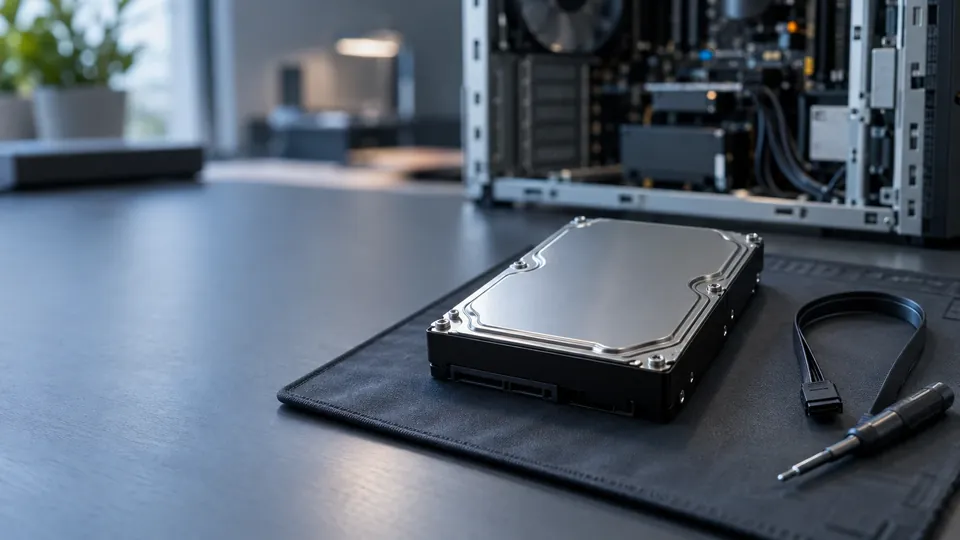
Diagnose and fix hard disk problems
8 Common Hard Disk Problems and Their Solutions (2026)
Not detected, clicking, freezing or asking to be formatted? Here are the 8 most common hard disk problems in 2026 — what causes each, how to fix the ones you safely can, and the crucial signs that mean you should stop and recover your data instead.
4.9 / 5915 Google reviews · Cleanroom lab (opens Google in a new tab)7 min read · Updated 2026-08-01
Your hard disk is the single most important — and most vulnerable — part of your computer, because it holds everything: your work, your photos, your memories. When it starts misbehaving, knowing what's wrong (and, just as importantly, what not to do) can be the difference between a quick fix and permanent data loss.
This guide from the engineers at CBL Data Recovery Singapore walks through the 8 most common hard disk problems in 2026, what causes each, the solutions you can safely try, and the clear warning signs that mean you should stop and protect your data instead of experimenting.
Guide
The golden rule before you troubleshoot
There are two very different categories of hard-disk problem: logical (the hardware works, but the data is corrupted, deleted, or the file system is damaged) and physical (the drive hardware itself is failing). Logical problems are often safe to fix at home. Physical problems are not — running software or repair tools on failing hardware usually makes things worse. The single most valuable skill is telling them apart, so we'll flag it for each problem below.
Guide
The 8 most common hard disk problems
1. Hard drive not detected. The drive doesn't appear in File Explorer or the BIOS. Causes: loose cables, a failed controller, firmware corruption, or mechanical failure. Solution: first check the SATA/power cables and try another port or computer. If it's still undetected and you hear no odd noises, it may be a logical or firmware issue. If it clicks or spins oddly, stop — that's physical, and a lab is needed.
2. Clicking, beeping or grinding noises. Cause: almost always mechanical failure — the read/write heads are hitting the platters, or the motor is seized. Solution: there is no safe DIY fix. Power it off immediately and do not keep restarting it; every second of clicking causes more damage. This is a recovery job for a cleanroom lab.
3. Bad sectors. Parts of the disk become unreadable, causing errors, freezes or corrupted files. Causes: age, wear, or the early stage of physical failure. Solution: chkdsk can mark and work around a few bad sectors on an otherwise healthy drive, but a rapidly growing count of bad sectors means the drive is dying — back up now and replace it, don't keep repairing.
4. Slow performance and freezing. The computer hangs when opening files or folders. Causes: a fragmented or nearly-full drive, or (more seriously) bad sectors and impending failure. Solution: free up space and defragment (HDDs only), and check SMART health. If freezing coincides with strange noises or SMART warnings, treat it as a failing drive.
5. Corrupted file system / "RAW" drive. The drive shows as RAW or asks to be formatted. Cause: usually logical — an interrupted write, power loss, or malware damaged the file structure while the data is still there. Solution: do not format if you want the data. On a healthy drive this is often recoverable with proper tools; formatting can destroy the recoverable files.
6. Overheating. The drive gets very hot and the system shuts down or errors. Causes: poor airflow, dust, or a failing drive drawing excess power. Solution: improve cooling and clear dust. Persistent overheating despite good airflow can signal a failing drive — monitor its SMART health closely.
7. Firmware corruption. The drive is detected but with the wrong capacity, a strange name, or it hangs the system. Cause: the drive's internal firmware (its operating system) is damaged. Solution: this is specialist territory — firmware repair requires professional tools and knowledge. DIY attempts typically fail and can lock the drive further.
8. Head crash / physical damage. The drive suffered a drop or impact and now won't work. Cause: the delicate heads or platters are physically damaged. Solution: none at home. Opening the drive outside a cleanroom introduces dust that destroys the platters. This is the definitive case for a professional cleanroom recovery.
Guide
Logical vs physical: how to tell the difference
A quick rule of thumb that could save your data:
- Probably logical (often DIY-safe): the drive is detected and spins normally, but files are missing, corrupted, or the drive shows as RAW. No unusual noises. These are the "software" problems where careful recovery tools can help.
- Probably physical (stop and recover): clicking, beeping, grinding, or a burnt smell; the drive isn't detected at all; it disappears intermittently; or it followed a drop or liquid spill. These mean the hardware is failing, and every power-on risks the data.
When in doubt, assume physical and stop. It costs nothing to have a drive assessed, and it costs everything to run repair tools on failing hardware. For a deeper explanation, see our guide on physical vs logical data recovery.
The mistake that destroys data
The most common way people lose recoverable data is by running repair tools, formatting, or repeatedly restarting a physically failing drive. If your drive is clicking or undetected, none of those help — they only reduce what a lab can recover. Stop and get a diagnosis. See our hard drive recovery and not-detected guides.
Guide
When to call a professional
Some problems have safe home fixes; others are a trap. Call a lab when the drive is clicking or making noises, not detected at all, physically damaged or dropped, water-damaged, or when it holds irreplaceable data with no backup. In those cases, a professional cleanroom recovery gives you the best — often the only — chance of getting your files back intact.
Hard drive clicking or not detected?
CBL's cleanroom lab recovers data from failed, clicking and undetected drives every week — free diagnosis, fixed quote before any work.
WhatsApp: +65 8127 7508
Call: +65 6588 0261
Guide
How to prevent hard disk problems
Most of these problems are far easier to prevent than to fix. A few habits keep a drive healthy and give you early warning before failure:
- Monitor SMART health monthly. A free tool like CrystalDiskInfo reads the drive's own health data and flags rising reallocated-sector counts — often weeks before a drive fails. It's the closest thing to an early-warning system.
- Keep it cool and dust-free. Heat is the biggest killer of drives. Ensure good airflow, keep vents clear, and blow the dust out of your desktop every few months.
- Protect against power problems. Sudden power loss during a write can corrupt the file system. A UPS on a desktop, or a healthy laptop battery, smooths out those events.
- Handle with care. Never move a running computer roughly, and treat external drives gently — a single knock while spinning can cause a head crash.
- Don't ignore early symptoms. Occasional freezes, slow access to certain folders, or a single odd noise are often the first signs of trouble. Back up immediately and investigate rather than waiting for total failure.
- Above all, keep a current backup. No maintenance makes a drive immortal. A good backup routine turns any drive failure from a catastrophe into a minor inconvenience, because your data lives safely elsewhere.
Prevention isn't glamorous, but it's the difference between swapping a tired drive on your own schedule and paying for an emergency recovery on the drive's.
Guide
Frequently Asked Questions
Common causes range from loose cables and a failed controller (often recoverable) to firmware corruption or mechanical failure. Check cables and another port first; if it's silent and still undetected it may be logical, but if it clicks or spins oddly, stop and seek recovery.
No — clicking means mechanical failure, and there's no safe home fix. Power it off immediately and don't restart it repeatedly. A cleanroom lab can often still recover the data if you stop before more damage occurs.
Only on a healthy drive with minor errors. On a physically failing drive, CHKDSK's writes can worsen the damage and destroy recoverable data. If you suspect hardware failure, copy your data off first or seek recovery.
Don't format if you want the data. RAW usually means file-system corruption with the data still present. Formatting can destroy it — use proper recovery tools or a lab instead.
Very often, yes — even from clicking, undetected, or physically damaged drives — provided it hasn't been overwritten or worsened by DIY attempts. Contact us for a free diagnosis before giving up.
What our clients say
Trusted by individuals and businesses in Singapore


Business Profile
Data Recovery – Rated by customers on Google
915Google reviews
4.9 out of 5
Updated 4 Nov 2026
“Thank you to the team at CBL for helping me recover all the contents from my faulty USB, which contained many precious family photos.”
Iris ShenUSB flash drive recovery · via Google “Great relief the engineers managed to recover all my data successfully from my damaged iPhone 14.”
Peter AndroidiPhone 14 recovery · via Google “Amazing service from CBL. They have restored all the data from my laptop. Sarah was very helpful and attentive to my queries.”
S YTLaptop recovery · via Google