
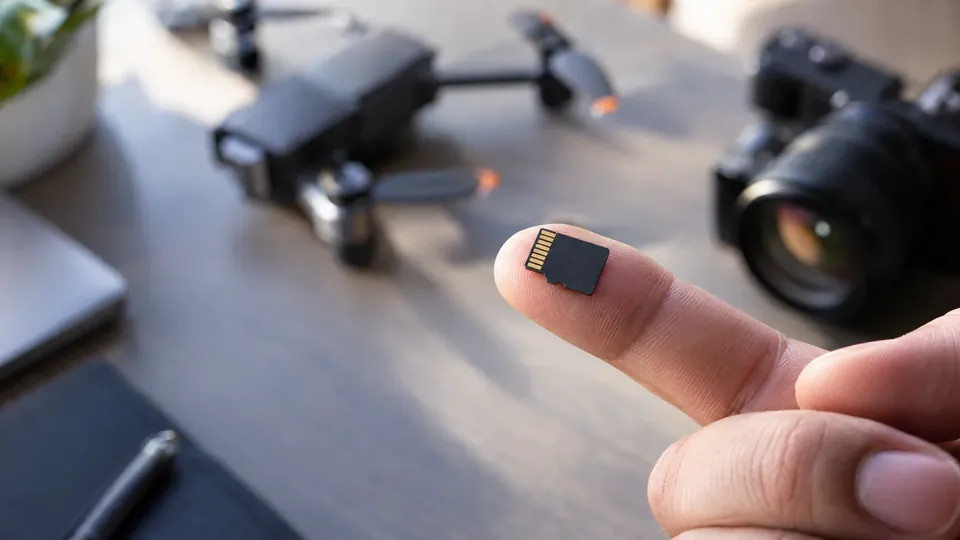
Recover a microSD card
How to Recover Data From a microSD Card (2026 Guide)
microSD cards run our phones, cameras, drones, dashcams and switches — and they fail and corrupt more than any card because they're so tiny and heavily used. Here's how to do data recovery from a microSD card in 2026: the safe steps that work, and when a lab is needed.
4.9 / 5915 Google reviews · Cleanroom lab (opens Google in a new tab)7 min read · Updated 2026-08-01
microSD cards are everywhere — in phones, cameras, drones, dashcams, the Nintendo Switch, and countless devices — and because they're so tiny and heavily used, they fail and corrupt more often than any other card. When a microSD card is deleted, corrupted, or suddenly won't read, it can take irreplaceable photos, videos, and files with it. The good news: microSD cards are among the most recoverable storage there is, if you act correctly. This guide explains how to do data recovery from a microSD card in 2026 — the safe steps that work, and when a lab is needed.
From the engineers at CBL Data Recovery Singapore, who recover microSD cards every week.
Guide
Why microSD data is usually recoverable
When you delete or format a microSD card, the card marks that space as free but leaves the data physically in place until it's overwritten. And unlike phones and SSDs, microSD cards don't run TRIM, so deleted data lingers far longer and is highly recoverable. Even a card that shows as corrupted, RAW, or asks to be formatted usually still has your files intact behind a damaged file system. So the golden rule is simple: stop using the card the moment you notice a problem, and your odds are excellent.
Guide
Step-by-step microSD recovery
1. Stop using the card immediately. Don't take more photos or record onto it — new data overwrites recoverable files.
2. Remove the card and use a reader. Take it out of the phone, camera or device and connect it to a computer using a microSD-to-USB reader or an SD adapter. Don't try to recover on the device itself.
3. Set the write-protect lock on the SD adapter (if using one) to prevent accidental writes.
4. Don't format it if it shows as corrupted or asks to be formatted — formatting builds an empty file system over your data.
5. Run recovery software. Use Recuva, Disk Drill, PhotoRec, or Stellar to scan the card. These recover photos, videos, and files — including RAW formats — by signature, even from a corrupted card. Recover to your computer, never back to the card.
6. Verify the recovered files open correctly before assuming you're done.
7. Reformat only afterward — once your data is safely recovered and the card is confirmed healthy.
The sooner you act after data loss, the better the results.
Guide
Recovering a corrupted or "not reading" microSD card
If the card is detected but shows as RAW, empty, or throws a "card error," the data is usually still there behind file-system corruption. Connect it via a reader, decline any format prompt, and run recovery software (PhotoRec recovers by signature even from an unreadable file system). If the card shows in Disk Management without a drive letter, assigning one can help — but don't initialise or format it. Only reformat once your files are recovered.
Guide
When a microSD card is physically damaged
If the card is cracked, snapped, bent, water-damaged, or completely undetected by any reader, software can't help — but the data may still be on the memory chip. Don't force it into readers or apply heat. Chip-level lab recovery can often retrieve the data from a physically damaged microSD card, since the tiny memory chip frequently survives.
Don't format, and don't force a damaged card
The two mistakes that cost people their microSD data are formatting a corrupted card (overwriting the files) and forcing a physically damaged card into readers (which can destroy the chip). If the data matters, stop and get a diagnosis. See our SD card recovery service.
Guide
When to call a lab
Call a lab when the microSD card is physically damaged, snapped, or water-damaged, when no reader detects it, when DIY software fails on a corrupted card, or when the data is irreplaceable. Labs perform chip-level recovery and handle corruption software can't. Because forcing a damaged card can destroy the chip, stopping early protects your data.
microSD card corrupted or not reading?
CBL's cleanroom lab recovers data from corrupted, snapped and water-damaged microSD cards — free diagnosis, fixed quote before any work.
WhatsApp: +65 8127 7508
Call: +65 6588 0261
Guide
How to avoid microSD data loss
- Eject the card safely before removing it, and stop recording before taking it out of a device.
- Use quality, genuine cards from reputable brands — counterfeit microSD cards corrupt and fail far more often.
- Don't remove the card mid-write or with a flat battery.
- Back up regularly, so a failed card is never the only copy. See our data backup tactics.
Guide
Frequently Asked Questions
Usually, yes. microSD cards don't run TRIM, so deleted and formatted data lingers and is highly recoverable. Stop using the card, remove it, and scan with recovery software (Recuva, Disk Drill, PhotoRec), saving recovered files to your computer.
No, not if you want the data. That message means corruption with the files still there. Connect the card via a reader, decline the format, and run recovery software first.
Try it in another reader and computer once. If still undetected, it may have a controller fault or physical damage needing chip-level lab recovery. Don't force it repeatedly.
Recuva, Disk Drill, PhotoRec and Stellar all work well, recovering photos, videos and files including RAW formats. Use a reader, don't format the card, and recover to your computer.
Not necessarily — the data may still be on the memory chip, recoverable via chip-level lab recovery. Don't force it into readers or apply heat. Contact us for a free diagnosis.
What our clients say
Trusted by individuals and businesses in Singapore


Business Profile
Data Recovery – Rated by customers on Google
915Google reviews
4.9 out of 5
Updated 5 Nov 2026
“Thank you to the team at CBL for helping me recover all the contents from my faulty USB, which contained many precious family photos.”
Iris ShenUSB flash drive recovery · via Google “Great relief the engineers managed to recover all my data successfully from my damaged iPhone 14.”
Peter AndroidiPhone 14 recovery · via Google “Amazing service from CBL. They have restored all the data from my laptop. Sarah was very helpful and attentive to my queries.”
S YTLaptop recovery · via Google