
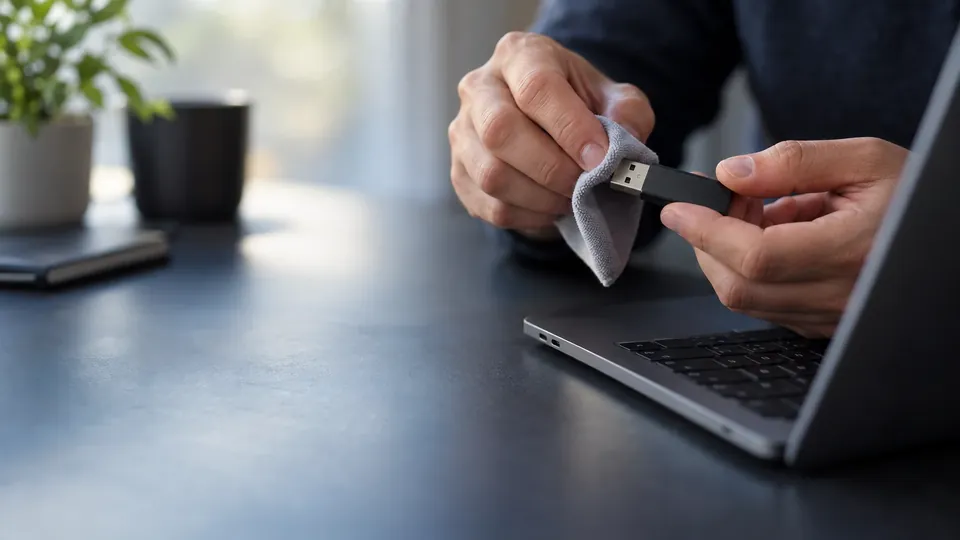
Recover a USB flash drive yourself
DIY Flash Drive Data Recovery: Tips & Tricks (2026)
A USB flash drive that won't open, asks to be formatted, or shows as empty doesn't always mean your files are gone. Here are DIY flash drive data recovery tips and tricks for 2026 — the safe steps that actually work, and the clear signs it's time to stop and call a lab.
4.9 / 5915 Google reviews · Cleanroom lab (opens Google in a new tab)7 min read · Updated 2026-08-01
A USB flash drive that won't open, demands to be formatted, or suddenly shows as empty is enough to spike anyone's heart rate — especially when it holds the only copy of something important. But it doesn't always mean your files are gone. Many flash drive problems are logical, and the data is often still sitting on the memory chip, waiting to be recovered. This guide shares safe DIY flash drive data recovery tips and tricks for 2026 — the steps that genuinely work, and the clear signs it's time to stop before you make things worse.
From the engineers at CBL Data Recovery Singapore, who recover flash drives every week — including plenty that DIY attempts nearly finished off.
Guide
Before you start: two golden rules
DIY recovery can help, but only if you don't sabotage yourself first:
- Stop writing to the drive. Don't save anything to it, and don't let the system write to it. New data can overwrite your recoverable files.
- Never format it "to make it work." When Windows offers to format a drive that shows as RAW or empty, decline — formatting builds an empty file system over your data and drastically cuts recovery chances.
Guide
DIY flash drive recovery, step by step
1. Try a different port and computer. A dead port, a flaky hub, or a driver glitch can make a healthy drive look failed. Plug it directly into a different USB port, and ideally a different computer, before assuming the worst.
2. Check Disk Management (Windows) or Disk Utility (Mac). Even if the drive doesn't show as a normal drive letter, it may appear in Disk Management. If it's there but without a drive letter, assigning one can make it accessible again. If it shows as "RAW" or unallocated, that's file-system corruption — recover before repairing.
3. Update or reinstall the USB driver. In Windows Device Manager, uninstalling and reconnecting the drive can reload a corrupted driver. A quick, harmless step that occasionally revives a "not recognised" drive.
4. Run CHKDSK carefully (logical issues only). For minor file-system errors on a drive that's otherwise detected, chkdsk can help — but it writes to the drive, so don't run it on a drive you suspect is failing, and never on one that's the only copy of critical data without recovering first.
5. Use recovery software. This is the workhorse. Reputable tools — Recuva, Disk Drill, PhotoRec, or TestDisk — scan the flash drive read-only and recover files to a different drive. TestDisk can also rebuild a corrupted or lost partition. Install the software on your computer, not the flash drive, and recover to your computer.
6. Verify the recovered files. Open them to confirm they're intact — occasionally a recovered file was partly overwritten and is corrupt.
Guide
Recovering a corrupted flash drive
If the drive shows as RAW or throws "you need to format the disk" errors, that's typically corruption with the data intact underneath. Don't format. Instead, run recovery software (PhotoRec recovers by file signature even when the file system is unreadable) directly on the drive and save the results elsewhere. Only once your files are safely recovered, and if the drive is physically healthy, should you reformat it for reuse.
Guide
When DIY won't work — and can hurt
Here's where honesty matters. DIY recovery is for logical problems on a working drive. It cannot help, and can worsen things, when:
- The drive isn't detected at all — often a failed controller chip. The data may be on the memory chip, but reaching it needs chip-level recovery.
- The connector is snapped or the board is cracked — a physical repair job, not a software one.
- The drive is water-damaged — don't plug it in; corrosion plus power causes more harm.
- You keep re-plugging a failing drive — each attempt can finish off a dying controller.
Stop before DIY makes it worse
If a flash drive is physically damaged, not detected, or water-damaged, running software or repeatedly re-plugging it won't help and can destroy recoverable data. That's a lab job. See our USB flash drive recovery service.
Guide
When to call a lab
Call a lab when the drive is not recognised, physically damaged or snapped, water-damaged, or holds irreplaceable data you can't risk on DIY. Labs perform board-level repair and chip-level recovery — reading the raw memory and rebuilding the data — which no consumer software can do. Because forcing a failing drive can destroy the controller or chip, stopping early protects your data.
Flash drive not recognised or snapped?
CBL's cleanroom lab recovers data from failed, snapped and water-damaged flash drives — free diagnosis, fixed quote before any work.
WhatsApp: +65 8127 7508
Call: +65 6588 0261
Guide
How to avoid flash drive data loss
Prevention beats recovery every time:
- Never store the only copy of anything important on a flash drive — treat it as a courier, not a vault.
- Always eject safely before unplugging, to avoid corruption.
- Buy quality drives from reputable sellers, and test a new drive's real capacity before trusting it.
- Protect the connector with a cap or retractable design, and keep the drive away from water and heat.
- Keep a backup so a failed flash drive is an inconvenience, not a disaster. See our data backup tactics.
Guide
A quick decision guide: DIY or lab?
Not sure whether to attempt DIY or go straight to a lab? Use this simple test:
- The drive is detected, opens (or shows as RAW), and the data is replaceable → DIY is reasonable. Stop writing to it, run recovery software to another drive, and verify the results.
- The drive is detected but the data is irreplaceable and unbacked-up → you can try DIY carefully, but consider imaging the drive first, and don't run
chkdskor format. If the free scan looks incomplete, a lab is safer. - The drive isn't detected at all, or shows the wrong capacity → likely a controller or firmware fault. Try one other port/computer; if still nothing, stop — this is chip-level recovery territory.
- The drive is physically damaged, snapped, or water-damaged → don't attempt DIY. Forcing it into readers or powering a wet drive causes more harm. Go straight to a lab.
- You've already run software and it failed, or the drive is getting worse → stop. Repeated attempts on a failing drive reduce what's recoverable. Get a professional diagnosis.
The honest rule of thumb: DIY is great for logical problems and replaceable data, but the moment the drive shows signs of physical failure or the data is truly irreplaceable, restraint beats persistence. A free diagnosis costs nothing and tells you exactly what you're dealing with — far better than gambling your only copy on another scan.
Guide
Frequently Asked Questions
Often, yes — for logical problems on a drive that's still detected. Stop writing to it, don't format it, and run recovery software (Recuva, Disk Drill, PhotoRec) to a different drive. Physical damage and undetected drives need a lab.
No, not if you want the data. That message means corruption with the files still there. Run recovery software first; format only afterward if the drive is healthy.
Usually not — an undetected drive often has a failed controller, which needs chip-level recovery. Try a different port and computer once; if it's still undetected, stop and consult a lab.
Only for minor file-system errors on a healthy, detected drive. It writes to the drive, so on a failing drive or one holding your only copy of critical data, recover first rather than running chkdsk.
Don't plug it in (if wet) or force it into ports (if snapped). The data is likely still on the chip, but recovery needs a lab. Contact us for a free diagnosis.
What our clients say
Trusted by individuals and businesses in Singapore


Business Profile
Data Recovery – Rated by customers on Google
915Google reviews
4.9 out of 5
Updated 5 Nov 2026
“Thank you to the team at CBL for helping me recover all the contents from my faulty USB, which contained many precious family photos.”
Iris ShenUSB flash drive recovery · via Google “Great relief the engineers managed to recover all my data successfully from my damaged iPhone 14.”
Peter AndroidiPhone 14 recovery · via Google “Amazing service from CBL. They have restored all the data from my laptop. Sarah was very helpful and attentive to my queries.”
S YTLaptop recovery · via Google