
Recover data from Dell devices
Dell Data Recovery: Laptops, Desktops & Servers (2026)
A failed Dell laptop, a dead desktop, or a crashed PowerEdge server RAID can lock away critical data. Here's how Dell data recovery works in 2026 — the common failures across Dell's range, what to do (and not do), and how to get your files back safely.
4.9 / 5915 Google reviews · Cleanroom lab (opens Google in a new tab)7 min read · Updated 2026-08-01
Dell builds some of the most widely used computers in the world — XPS and Latitude laptops, OptiPlex desktops, and PowerEdge servers running businesses across Singapore. They're reliable machines, but no computer is immune to data loss: drives fail, laptops get dropped, and server RAID arrays degrade. When it happens on a Dell, the good news is that the underlying storage is standard, and recovery is very much possible. This guide explains how Dell data recovery works in 2026 across the whole range, and what to do to get your data back.
From the engineers at CBL Data Recovery Singapore, who recover data from Dell laptops, desktops and servers every week.
Guide
Dell laptops (XPS, Latitude, Inspiron)
Most data loss on a Dell laptop comes down to the storage drive — either a mechanical hard drive in older models or, in modern ones, an NVMe SSD soldered or slotted onto the board. Common scenarios:
- Drive failure — the SSD or hard drive stops being detected, or the laptop won't boot past the Dell logo.
- Physical damage — drops and spills, which can damage the drive or the board.
- Deleted or formatted data — human error or a botched Windows reinstall.
- BitLocker encryption — many Dell business laptops have BitLocker enabled, so recovery needs the recovery key.
For a Dell laptop that won't boot but whose drive is healthy, the data is often accessible by removing the drive and reading it on another machine. For a failed drive, or a soldered NVMe on a dead board, lab-level recovery is needed.
Guide
Dell desktops (OptiPlex, XPS, Vostro)
Desktop recovery is often more straightforward, because the drive is usually a standard SATA or NVMe unit that can be removed and read on another computer. The typical causes are the same — drive failure, deletion, formatting, corruption, or a power event. If the desktop's drive is healthy but the machine won't start, connecting the drive to another PC frequently recovers the data directly. If the drive itself has failed — clicking, not detected, or with bad sectors — it needs a lab, and you should stop using it before more damage occurs.
Guide
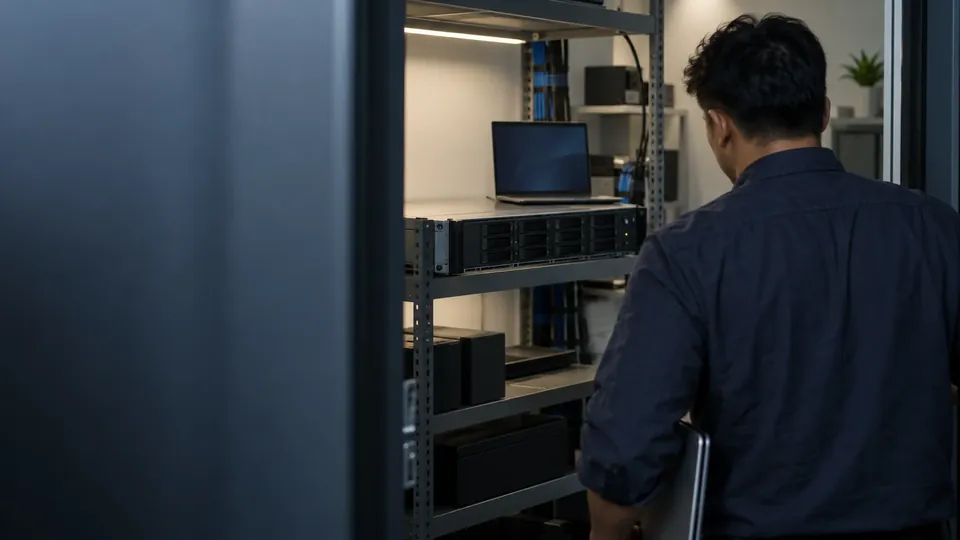
Dell PowerEdge servers and RAID
This is where the stakes rise. Dell PowerEdge servers typically use a PERC RAID controller with multiple drives in RAID 1, 5, 6 or 10. Server data loss usually involves:
- Multiple or cascading disk failures — a second drive failing during a RAID rebuild is a classic, devastating scenario.
- RAID controller (PERC) failure — the array won't come online even though the disks are fine.
- A failed or interrupted rebuild that corrupts the array.
- Accidental reconfiguration or reinitialisation of the array.
Server recovery is complex: it requires imaging every drive, correctly reconstructing the RAID parameters, and reading the file system — work that should never be attempted by rebuilding the live array. Do not force a rebuild or reinitialise a failed PowerEdge array — it's the most common way business data is destroyed.
Guide
What to do when a Dell device fails
Your response in the first hour matters:
- Stop using the device or drive if data is missing or it's behaving strangely — new writes overwrite recoverable data.
- Don't rebuild or reinitialise a server RAID array, and don't keep restarting a clicking drive.
- Don't reinstall Windows or reformat a Dell laptop or desktop whose data you want.
- Locate your BitLocker recovery key if the device is encrypted — you may need it for recovery. It's often stored in your Microsoft account or your organisation's records.
- Check for a backup first — restoration is faster and safer than recovery.
Don't rebuild a failed server array
The worst business-data losses we see come from forcing a rebuild or reinitialising a degraded PowerEdge RAID. If a server drive has failed, power down and get the array assessed before doing anything. See our server data recovery and RAID data recovery services.
Guide
When to call a lab
Call a lab when a Dell drive is clicking or not detected, when a PowerEdge RAID array has failed or won't come online, when the device is physically damaged, or when the data is business-critical. Labs image failing drives with specialist hardware, reconstruct RAID arrays correctly, and handle soldered NVMe recovery from dead laptop boards — capabilities DIY can't match. Because a failed DIY attempt (especially a forced RAID rebuild) can make professional recovery impossible, stopping early protects your data.
Dell laptop, desktop or server failed?
CBL's cleanroom lab recovers data from failed Dell drives and PowerEdge RAID arrays — free diagnosis, fixed quote before any work.
WhatsApp: +65 8127 7508
Call: +65 6588 0261
Guide
The challenge of modern Dell laptops
Recovery has become more involved on Dell's newest laptops, and it's worth understanding why. Many current XPS and Latitude models use an NVMe SSD soldered directly to the motherboard, rather than a removable drive. When the board dies — a common failure after a spill, a power fault, or a component failing — you can't simply pull the drive and read it elsewhere. Reaching the data requires board-level work in a lab to revive enough of the system to read the storage, or to access the NVMe chips directly.
On top of that, Dell business laptops frequently ship with BitLocker encryption enabled and tied to the TPM chip. That's excellent for security, but it means recovery isn't just about reading the drive — the data must be decrypted with the recovery key. If your organisation manages the device, IT usually holds that key; for personal devices, it's often in your Microsoft account. Locating it early saves time and avoids a situation where the raw data is recovered but can't be read.
None of this makes Dell laptops unrecoverable — far from it. It simply means that for a dead modern Dell laptop, DIY drive-swapping often isn't an option, and a lab with board-level and encryption expertise is the realistic path. The encouraging part is that the storage chips usually survive the kinds of failures that kill a laptop, so the data is typically still there, waiting to be reached by the right tools.
Guide
Frequently Asked Questions
Usually, yes. If the laptop won't boot but the drive is healthy, the data is often accessible by reading the drive on another machine. If the drive has failed or the NVMe is on a dead board, lab-level recovery is needed — but it's frequently successful.
Do not rebuild or reinitialise the array — that can destroy the data. Power down, label the drives with their bay order, and consult a lab. Server RAID recovery requires imaging every disk and reconstructing the array correctly.
If BitLocker encryption is enabled (common on Dell business laptops), yes — recovery needs the key to decrypt the data. Check your Microsoft account or your company's IT records for it.
The principles are the same, since Dell uses standard drives and RAID. The specifics — PERC controllers, BitLocker, soldered NVMe in some laptops — are what a lab accounts for. The data itself is recovered the same way.
Often, yes, in a cleanroom lab — if you stop using it before more damage occurs. Clicking means mechanical failure, so don't keep restarting it. Contact us for a free diagnosis.
What our clients say
Trusted by individuals and businesses in Singapore


Business Profile
Data Recovery – Rated by customers on Google
915Google reviews
4.9 out of 5
Updated 5 Nov 2026
“Thank you to the team at CBL for helping me recover all the contents from my faulty USB, which contained many precious family photos.”
Iris ShenUSB flash drive recovery · via Google “Great relief the engineers managed to recover all my data successfully from my damaged iPhone 14.”
Peter AndroidiPhone 14 recovery · via Google “Amazing service from CBL. They have restored all the data from my laptop. Sarah was very helpful and attentive to my queries.”
S YTLaptop recovery · via Google