
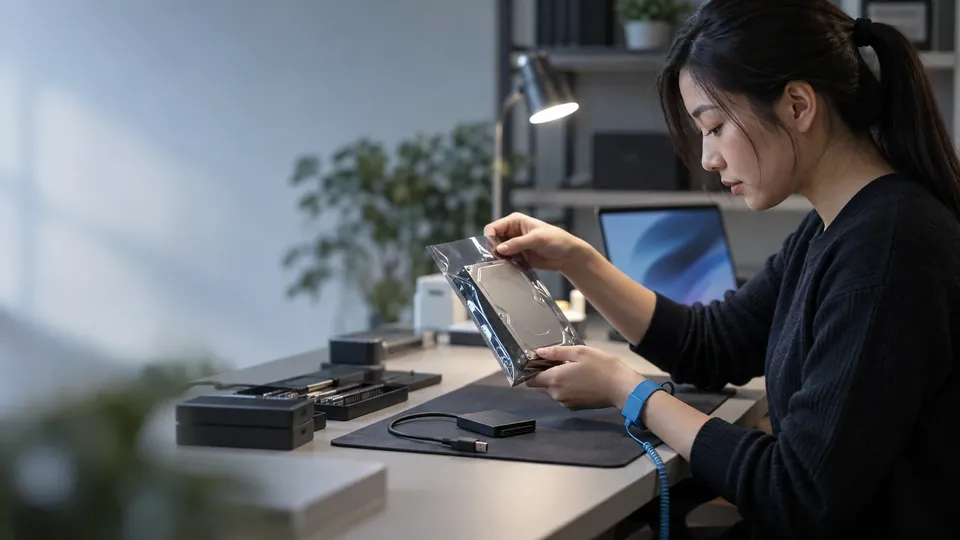
Recover a corrupted hard disk
How to Recover a Corrupted Hard Disk: Complete Guide (2026)
A corrupted hard disk that shows as RAW, throws errors, or asks to be formatted can lock away all your files — but the data is often still there. This complete 2026 guide explains how to recover a corrupted hard disk safely, step by step, and the one mistake that makes it permanent.
4.9 / 5915 Google reviews · Cleanroom lab (opens Google in a new tab)7 min read · Updated 2026-08-01
A corrupted hard disk is alarming: the drive that held your documents, photos and work suddenly shows as RAW, throws "the disk is not accessible" errors, or demands to be formatted before you can use it. It feels like everything's gone — but in most cases of corruption, the data is still physically there, hidden behind a damaged file system. Recovering it safely is entirely possible, provided you don't make the one mistake that turns recoverable corruption into permanent loss.
This complete guide from the engineers at CBL Data Recovery Singapore explains what causes disk corruption, how to recover a corrupted hard disk step by step, and when the job belongs to a lab.
Guide
What "corrupted" actually means
Disk corruption is usually a logical problem: the drive hardware works, but the file system — the index that tells the computer where every file lives — has been damaged. When that index is broken, the computer can't find your files, so it reports the drive as RAW, empty, or in need of formatting. The files themselves, though, are typically intact underneath. That's the hopeful reality of corruption: it's often a map problem, not a data problem.
The important exception is when corruption is a symptom of physical failure — a dying drive develops bad sectors that corrupt the file system. Telling logical corruption from physical failure is the key to recovering safely, so we'll flag it throughout.
Guide
What causes a hard disk to become corrupted
Common causes of corruption include:
- Improper shutdowns and power loss while the drive is writing, which interrupts file-system updates.
- Unsafe removal of an external drive mid-write.
- Malware and viruses that damage the file system.
- Bad sectors from a physically deteriorating drive corrupting the data structure.
- Software crashes or failed updates during disk activity.
- File-system errors that accumulate over time without maintenance.
Most of these are logical. The one to watch is bad sectors, because that points to physical decline — if corruption keeps recurring or is accompanied by noises or freezes, suspect the hardware.
Guide
How to recover a corrupted hard disk (step by step)
Work through this in order, from safest to more involved. Stop at the first sign of physical failure.
1. Stop writing to the drive. The moment you see corruption, don't save new files to it, and don't let programs write to it. New data can overwrite the recoverable files underneath.
2. Check the connections. For an external drive, try a different cable, port and computer. A loose connection can mimic corruption. Rule this out first.
3. Listen and observe. Does the drive spin quietly and get detected, just with errors? That points to logical corruption — proceed. Does it click, buzz, or fail to be detected? That's physical — stop and skip to the lab section.
4. Run a read-only check. On Windows, you can run chkdsk — but be careful: chkdsk /f writes to the drive and, on a failing drive, can worsen the damage. On a healthy drive with minor logical corruption, it can fix file-system errors; on anything you suspect is physically failing, don't run it. On Mac, First Aid in Disk Utility is the equivalent.
5. Recover files with software before repairing. The safest approach is to recover your data first, then worry about the drive. Use reputable recovery software (Recuva, Disk Drill, PhotoRec, or TestDisk for partition repair) to scan the corrupted drive read-only and copy recoverable files to a different drive. TestDisk in particular can often rebuild a lost or corrupted partition table.
6. Only then consider repairing or reformatting the drive — and only once your data is safely copied elsewhere and you've confirmed the drive is physically healthy.
Guide
The one mistake that makes it permanent
Here it is, plainly: do not format the drive when Windows or macOS offers to. When a corrupted drive shows as RAW, the system prompts you to format it so you can use it — but formatting builds a fresh, empty file system over your data, drastically reducing what can be recovered. It's the single most common way people destroy recoverable data from a corrupted disk. If you want your files, decline the format, recover first, and format only afterward if the drive is healthy.
Corruption plus noises means physical failure
If the drive is clicking, grinding, disappearing, or throwing constant read errors alongside the corruption, it's not just a file-system problem — the hardware is failing. Running chkdsk, formatting, or repeatedly retrying can destroy the data. Stop and get it assessed. See our hard drive recovery service.
Guide
When to call a professional lab
Call a lab when the corrupted drive is clicking or not detected, when chkdsk or software makes things worse, when the drive is physically damaged, or when the data is irreplaceable and you'd rather not risk DIY. Labs image the drive first — copying it safely before any recovery attempt — then rebuild the file system or extract files from the image, so the fragile original is never stressed. That imaging step is exactly what protects data that DIY attempts often lose.
Corrupted drive you can't recover?
CBL's cleanroom lab recovers data from corrupted, RAW and failed drives — free diagnosis, fixed quote before any work.
WhatsApp: +65 8127 7508
Call: +65 6588 0261
Guide
How to prevent disk corruption
A few habits keep corruption rare:
- Always shut down properly and use a UPS to avoid power-loss corruption.
- Eject external drives safely before unplugging them.
- Keep malware off the system with updates and caution.
- Monitor SMART health so you catch a physically declining drive before it corrupts your data.
- Back up regularly — corruption is far less frightening when a clean copy is a restore away. See our data backup tactics.
Guide
Frequently Asked Questions
Usually, yes. Corruption is typically a damaged file system with the data still intact underneath. Recovery software or a lab can retrieve the files — as long as you don't format the drive or overwrite it first.
No, not if you want the data. That message means file-system corruption; formatting builds an empty file system over your files and drastically reduces recovery chances. Recover your data first, format only afterward.
Only on a physically healthy drive with minor logical corruption. On a failing drive, chkdsk /f writes to the disk and can worsen the damage. If you suspect hardware failure, don't run it — recover the data first.
A corrupted drive works but has a damaged file system (logical). A physically failed drive has hardware damage — clicking, not detected, dropped or wet. Software can often fix logical corruption; physical failure needs a lab.
Clicking means physical failure. Stop using it, don't run repair tools, and contact us for a free diagnosis — a lab can often still recover the data if you act before more damage occurs.
What our clients say
Trusted by individuals and businesses in Singapore


Business Profile
Data Recovery – Rated by customers on Google
915Google reviews
4.9 out of 5
Updated 5 Nov 2026
“Thank you to the team at CBL for helping me recover all the contents from my faulty USB, which contained many precious family photos.”
Iris ShenUSB flash drive recovery · via Google “Great relief the engineers managed to recover all my data successfully from my damaged iPhone 14.”
Peter AndroidiPhone 14 recovery · via Google “Amazing service from CBL. They have restored all the data from my laptop. Sarah was very helpful and attentive to my queries.”
S YTLaptop recovery · via Google