
Keep your drive healthy and fast
10 Easy Ways to Keep Your Hard Drive Running Smoothly (2026)
A hard drive rarely dies without warning — most failures are the slow result of heat, bad habits and neglect. Here are 10 easy ways to keep your drive running smoothly in 2026, plus the early warning signs that mean it's time to back up now.
4.9 / 5915 Google reviews · Cleanroom lab (opens Google in a new tab)7 min read · Updated 2026-08-01
Hard drives and SSDs are where your entire digital life lives — photos, documents, projects, memories. Yet most people never think about drive health until the day it fails and takes everything with it. The reassuring news: a drive rarely dies without warning, and a few easy habits can dramatically extend its life and keep it running fast.
This guide from the engineers at CBL Data Recovery Singapore — who see failed drives every single day — shares the 10 easiest, most effective ways to keep your drive healthy in 2026, and the early warning signs that mean you should back up immediately.
Guide
Why drive health is worth five minutes
Every drive has a finite life. Mechanical hard drives (HDDs) have spinning platters and moving heads that wear out; SSDs have memory cells with a limited number of write cycles. Neither lasts forever — but the difference between a drive that dies in three years and one that runs happily for eight often comes down to heat, power, handling and simple upkeep. A little attention now is far cheaper than a recovery bill later.
Guide
The 10 easy ways to keep your drive healthy
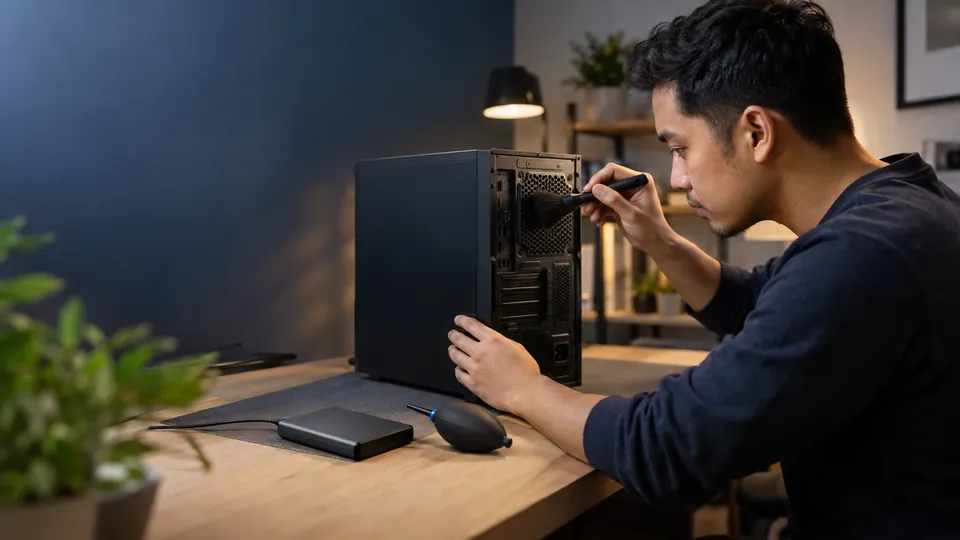
1. Keep it cool. Heat is the number-one enemy of drives. Make sure your PC or laptop has good airflow, don't block vents, and keep the machine out of direct sun and off soft surfaces like beds that trap heat. For desktops, a clean case fan does more for drive life than almost anything else.
2. Protect it from bumps and drops. Mechanical HDDs are especially fragile while spinning — a knock can crash the heads into the platters. Never move a running laptop roughly, and handle external drives gently. If you use portable HDDs, a padded case is worth every cent.
3. Guard against sudden power loss. Abrupt power cuts while the drive is writing can corrupt data and stress the hardware. On a desktop, a small UPS (uninterruptible power supply) prevents this; on a laptop, keep the battery healthy so it rides out outages.
4. Don't fill it to the brim. A drive crammed to 100% slows down and, for SSDs, wears out faster. Leave 10–15% free space so the drive has room to manage files and (on SSDs) balance wear across cells.
5. Defragment HDDs — but never SSDs. For mechanical drives, occasional defragmentation keeps files contiguous and access fast. SSDs should never be defragmented — it causes needless wear. Instead, make sure TRIM is enabled (it is by default on modern Windows and macOS) so the SSD stays fast.
6. Run regular error checks. Windows' built-in error checking (and chkdsk on a healthy drive) catches and fixes minor file-system issues before they grow. On a Mac, First Aid in Disk Utility does the same. Catching small errors early prevents bigger corruption.
7. Monitor SMART health. Every modern drive reports its own health via SMART. A free tool like CrystalDiskInfo (Windows) reads it and warns you when attributes like reallocated sectors start climbing — often weeks before a failure. Check it monthly; it's the closest thing to a crystal ball for drives.
8. Keep malware off the system. Viruses and ransomware don't just steal data — they thrash the drive with writes and can corrupt the file system. Keep your OS and security tools updated, and be cautious with unknown downloads and attachments.
9. Update firmware and drivers. Drive manufacturers occasionally release firmware fixes that improve reliability and performance. Keep your storage drivers and (where offered) drive firmware current using the maker's official tool.
10. Eject external drives safely. Always use "Safely Remove Hardware" (Windows) or eject (Mac) before unplugging an external drive. Yanking it mid-write is one of the most common causes of corrupted external drives we see.
Guide
A simple maintenance routine
You don't need to be a technician. A light routine keeps drives healthy with almost no effort:
- Weekly: make sure your automatic backup ran, and empty the Recycle Bin / Trash of things you're sure about.
- Monthly: open CrystalDiskInfo (or your Mac's drive health tool) and check the drive shows "Good." Glance at free space and clear out large files you no longer need.
- Every few months: blow the dust out of your desktop's fans and vents, run a quick error check, and confirm your backup actually restores (open a couple of backed-up files).
- Yearly: review whether an ageing drive — especially one past 4–5 years of heavy use — should be proactively replaced before it fails.
That's it. Fifteen minutes a month buys you early warning and a faster machine, and it turns most "sudden" drive deaths into something you saw coming and prepared for.
Guide
The warning signs a drive is failing
Maintenance keeps a healthy drive healthy — but learn these red flags, because they mean back up now and stop stressing the drive:
- Clicking, buzzing or grinding noises from an HDD (a mechanical failure in progress).
- Files that won't open, disappear, or become corrupted for no reason.
- The computer freezing or crashing when accessing certain files or folders.
- The drive vanishing from the system intermittently, or taking a long time to appear.
- SMART warnings or rising reallocated-sector counts in CrystalDiskInfo.
If you see these signs, stop and back up
These symptoms mean the drive is degrading. Continuing to use it — or running repair tools on failing hardware — can turn a recoverable situation into permanent loss. Copy your important files off immediately, and if the drive is clicking or not detected, treat it as a recovery case. See our hard drive recovery and clicking-noise guides.
Guide
When maintenance isn't enough
Even a well-cared-for drive can fail — manufacturing defects, age and bad luck happen. If your drive has already failed, is clicking, or isn't recognised, no maintenance tool will fix it, and DIY software can make things worse. That's the moment for a professional lab.
Drive making noises or not detected?
CBL's cleanroom lab recovers data from failed, clicking and unrecognised drives every week — free diagnosis, fixed quote before any work.
WhatsApp: +65 8127 7508
Call: +65 6588 0261
Guide
Does the advice differ for SSDs and HDDs?
Most of these habits help both drive types, but a few differences matter:
- Mechanical HDDs are vulnerable to physical shock and heat, and benefit from occasional defragmentation. Their moving parts are the weak point, so careful handling matters most.
- SSDs have no moving parts, so shock is less of a worry — but they wear out through writes. Never defragment them, keep TRIM on, and leave free space so the controller can spread wear evenly. Heat still shortens their life, so cooling matters for both.
- Both benefit hugely from SMART monitoring, safe ejection, power protection and — above all — a current backup. No amount of maintenance replaces a backup, because even a perfectly healthy drive can be lost to theft, fire or ransomware.
The single most important takeaway holds for every drive type: maintenance reduces the odds of failure, but only a backup guarantees your data survives one. Treat the two as partners, not alternatives.
Guide
Frequently Asked Questions
Typically 3–5 years for a mechanical HDD under regular use, though many last longer with good care. SSDs often last longer for everyday users but are limited by total write volume. Heat, power quality and handling make a big difference either way.
No. SSDs must never be defragmented — it adds pointless wear. Ensure TRIM is enabled (default on modern systems) instead. Defragmentation is only for mechanical HDDs.
Use a free SMART-monitoring tool like CrystalDiskInfo on Windows, or Disk Utility's First Aid on Mac. Watch for a "Caution" status or rising reallocated-sector counts — early signs of trouble.
Not by itself — steady operation is fine, and constant power cycling can actually stress a drive more. Heat and abrupt power loss are the real risks, so ensure good cooling and consider a UPS.
Stop using it immediately and don't run repair tools. Clicking usually means mechanical failure, and continued use reduces recovery odds. Contact us for a free diagnosis.
What our clients say
Trusted by individuals and businesses in Singapore


Business Profile
Data Recovery – Rated by customers on Google
915Google reviews
4.9 out of 5
Updated 5 Nov 2026
“Thank you to the team at CBL for helping me recover all the contents from my faulty USB, which contained many precious family photos.”
Iris ShenUSB flash drive recovery · via Google “Great relief the engineers managed to recover all my data successfully from my damaged iPhone 14.”
Peter AndroidiPhone 14 recovery · via Google “Amazing service from CBL. They have restored all the data from my laptop. Sarah was very helpful and attentive to my queries.”
S YTLaptop recovery · via Google