
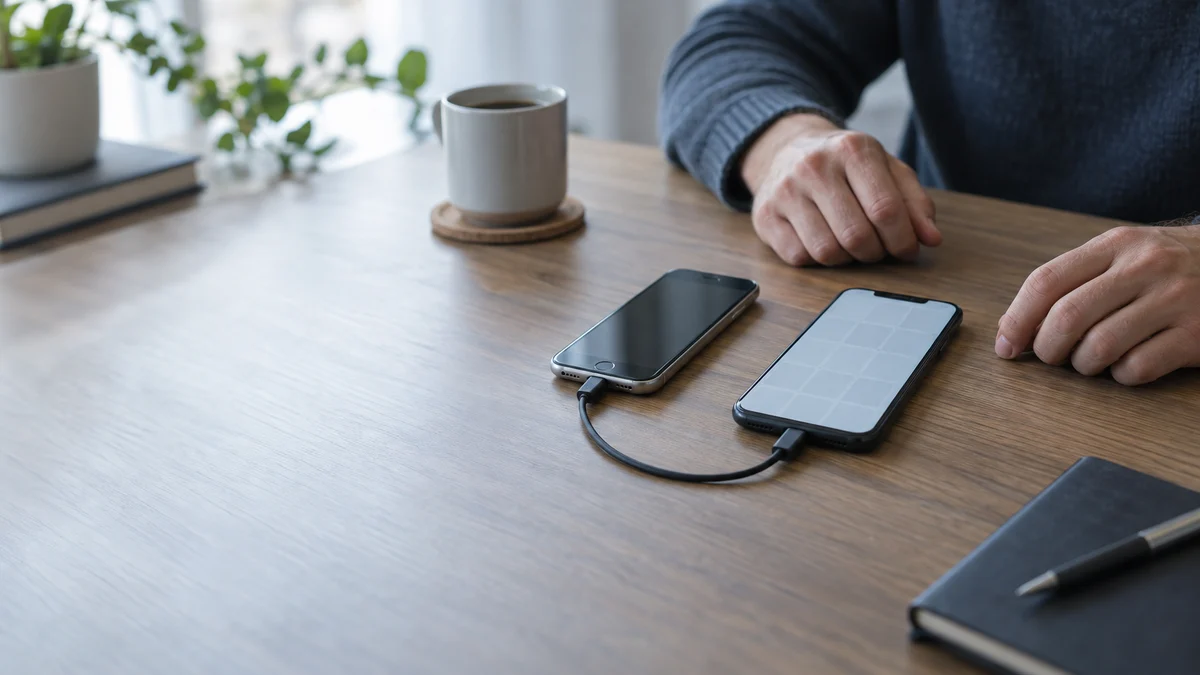
Before anything else: do not erase, reset or trade in the old iPhone. Quick Start copies your data, it does not move it, so the old handset still holds everything. Almost every permanent loss we see after an upgrade happened because someone tidied up the old phone before checking the new one properly.
Do this first
Put the old iPhone somewhere safe and charged. Leave it switched on. That single step preserves every option you have, and costs you nothing.
Then plug the new iPhone in, connect it to Wi-Fi, and leave it overnight. A large photo library can take many hours to finish arriving, and a great many “missing photos” cases resolve themselves by morning with no intervention at all.
Only once both of those are true is it worth diagnosing anything.
Four different causes, one identical symptom
1. iCloud Photos is still downloading
By a wide margin the most common cause — and not data loss at all. If Optimise iPhone Storage is switched on, the full-resolution originals live in iCloud and the phone keeps smaller previews. On a new device those originals download in the background over Wi-Fi, often over many hours, and Photos shows gaps or soft, low-quality images in the meantime.
Scroll to the very bottom of your library in the Photos app, where a status line reports what is still to come. Check Settings → [your name] → iCloud → Photos too.
2. The app moved, but the app’s data did not
Quick Start brings your apps across, but many apps rebuild their content from their own servers the first time you sign in, rather than receiving it from Apple’s migration. If you have not signed in to that app on the new phone yet, its data is not missing — it simply has not been fetched.
3. Shared Albums and content you never owned
Photos inside a Shared Album belong to whoever created it. They are not part of your library and do not migrate as your data. The same applies to files that only ever lived in someone else’s shared folder.
4. Something genuinely did not transfer
This is the real one, and it is the rarest. An interrupted Quick Start, a device that ran out of storage part-way, or a migration cancelled by a phone call can all leave a partial result. The fix is straightforward as long as the old phone is intact: erase the new phone and set it up again.
WhatsApp does not use Apple’s migration
This catches people constantly, so it is worth its own section.
WhatsApp chat history moves through its own iCloud backup, restored during WhatsApp’s setup on the new phone — not through Quick Start. If you skipped or dismissed that prompt, or if WhatsApp’s last backup was weeks old, your chat history will be exactly as complete as that backup and no more. Signal works similarly, using a separate device-to-device transfer you have to start deliberately.
Before you erase the old phone, open WhatsApp → Settings → Chats → Chat Backup and look at its last backup date. That is the date that governs your messages — not your iPhone backup date.
The safest troubleshooting sequence
Work through these in order. The ordering is deliberate — each step avoids destroying an option further down the list.
- Do not erase or trade in the old iPhone. Nothing else matters if you skip this.
- Give iCloud time. Wi-Fi, charger, overnight, then re-check.
- Verify on the old phone, not from memory. Confirm the missing content is actually there. Occasionally it was never on that device either.
- Check Recently Deleted. Photos keeps deleted items for 30 days under Albums. Notes and Messages have their own equivalents.
- Confirm both phones use the same Apple Account. Two accounts in one household is a common cause of “missing” data that is simply signed in elsewhere.
- Back up the old phone to a computer now, with Encrypt local backup ticked. Only an encrypted backup includes your saved passwords, Wi-Fi settings, website history, Health data and call history.
- Then re-run the migration. With a verified backup in hand you can erase the new phone and set it up again without risk.
Apple cannot recover a forgotten backup password, and neither can we. You can reset it and make a fresh backup, but the old encrypted backup becomes permanently unusable. Record it the moment you set it.
What NOT to do
Each of these has cost someone their data.
- Do not factory reset the old iPhone to “start fresh”. Erase All Content and Settings destroys the encryption keys, so the contents become meaningless within seconds. It cannot be undone by Apple, by us, or by anyone.
- Do not hand the old phone to a trade-in counter or courier until the new one is properly verified. Once collected, you do not get it back.
- Do not install “iPhone data recovery” software. On a modern iPhone these tools cannot read deleted content out of encrypted storage. What they generally do is read an existing backup — something you can do yourself for free — while presenting it as a recovery.
- Do not repeatedly guess a passcode. iOS enforces escalating delays and can erase the device after ten failed attempts.
- Do not let a repair shop replace the logic board of a phone whose data you still need. The data is tied to the board that comes out.